Rich Text Formatting and AI Text Transformation in Text Areas
Rich text is text that includes formatting such as headings, lists, bold, and italic. Text Area questions can use two related features:
-
Rich Text formatting: Makes the question support rich text. Mobile users see a formatting toolbar to apply styles, and the question renders any markdown content as styled text.
-
AI Text Transformation: AI prompts that transform a mobile user's text. Depending on how the form designer writes the prompt, the AI's output might include formatting or stay plain text. Elite
The two features are independent. A question can have one, both, or neither. They can also work together. When Rich Text formatting Rich Text formatting makes a Text Area question support rich text. Mobile users see a formatting toolbar on device, and the question renders markdown content as styled text. Available on Text Area questions and on Additional Comments that use a Text Area. is on and a prompt returns formatted output, the question renders the AI's output as styled text.
Available on all tiers with more options on the Elite tier:
Contents
Video demo
What Rich Text formatting and AI Text Transformation do
| Feature | What it does | Where it appears |
|---|---|---|
| Rich Text formatting | Enables support for rich text on a question. Mobile users use a toolbar to add headings, lists, bold, italic, and other styles. |
|
| AI Text Transformation Elite |
Refines a mobile user's text with AI. Mobile users select a prompt from the menu, review the AI output, and approve the result. Note:AI Text Transformation |
Text Area questions |
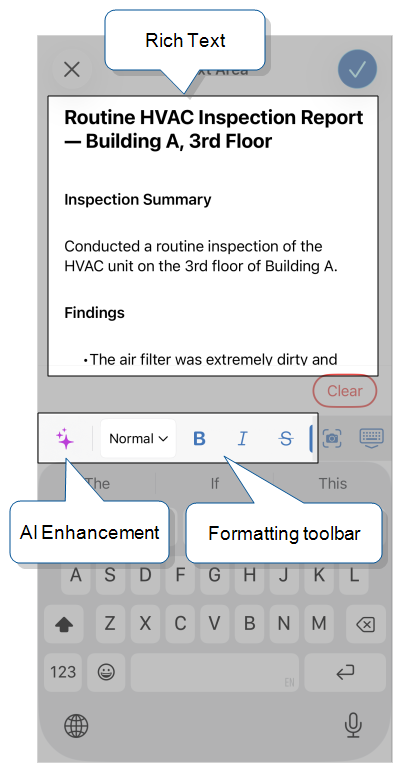
The following image shows how Rich Text formatting and AI Text Transformation appear in the Mobile App.
How Rich Text formatting works
Turning on Rich Text formatting makes the question support rich text. Mobile users see a formatting toolbar with these actions:
-
Headings (H1, H2, H3)
-
Bulleted and numbered lists
-
Bold, italic, strikethrough, and code
-
Quotes
The applied formatting renders as styled text in the Web Portal Form Submission details page and in generated PDFs. For a complete breakdown of how rich text appears across every output, go to the section Where Rich Text formatting renders.
How AI Text Transformation works
Available on the Elite tier:
Turning on AI Text Transformation adds a sparkle icon to the formatting toolbar on device. Mobile users refine their text in four steps:
-
Select the sparkle icon to open the prompts menu.
-
Choose a prompt and wait for the result.
-
Review the AI output against the original text and edit it if needed.
-
Select Approve to keep the result.
The system never applies AI-enhanced text automatically. The mobile user must approve the result first.
AI Text Transformation is controlled by a team-level setting. An Admin user must approve AI usage before AI Text Transformation is available for anyone on the team. For details, go to Approve AI Usage for Your Team.
How Rich Text formatting and AI Text Transformation work together
Rich Text formatting and AI Text Transformation are independent settings on a Text Area question. The combination you choose affects what mobile users can do and how the question stores and displays text.
-
Both on (recommended). Mobile users format text manually with the toolbar and can refine it with AI prompts. Formatted AI output renders as styled text in the question.
-
Rich Text formatting on, AI Text Transformation off. Mobile users format text manually with the toolbar. Use this combination when your company restricts AI use, or AI Text Transformation isn't appropriate for the workflow.
-
Rich Text formatting off, AI Text Transformation on. Mobile users refine their text with AI, but the question doesn't render formatting. Use this combination when you don't want mobile users to apply formatting, or when your system of record doesn't support markdown. Write prompts that explicitly return plain text. Otherwise, mobile users see raw markdown syntax (for example,
**bold**) in the answer. -
Both off. A standard plain text Text Area question with no formatting or AI assistance.
Where Rich Text formatting renders
Rich Text formatting stores formatting as markdown, whether the markdown was added with the toolbar or returned by an AI Text Transformation prompt. Some outputs render the markdown as styled text. Others pass the markdown characters through as literal text.
The following table describes how Rich Text formatting renders in Documents, Data Destinations A Data Destination specifies where to send data from a submitted form. You can use Data Destinations to automate data sharing and storage, routing data to a specific service (such as email or cloud storage) in several different formats., and other outputs. Use this table as a planning reference before you turn on Rich Text formatting on a question. The output your downstream system receives depends on the path: DREL Data Reference Expression Language (DREL) is used to get form data and metadata and add it to a string, such as dates, usernames, or answers to questions in forms.-based outputs (Data Destinations, DREL document templates) convert markdown to HTML by default, while paths such as CSV exports, the REST API The TrueContext REST API enables developers to update and manage data communicated between TrueContext and their external, third-party systems. Admins can call our API endpoints after they set up an API application and API Key., and email notifications pass the raw markdown through. Confirm that each system you send the answer to supports the format it receives.
Note:After you turn on Rich Text formatting, review any custom PDF, FreeMarker, Handlebars, or DREL document templates that already reference that question. A template not set up for rich text might show raw markdown characters instead of styled text. Update the template if needed.
| Output | How rich text appears |
|---|---|
| Web Portal Form Submission details page | Styled text |
| PDF Documents | Styled text |
| FreeMarker document templates |
Styled text, but FreeMarker templates need the |
| Handlebars document templates |
Styled text, but Handlebars templates need the triple-stash syntax |
| DREL document templates and other DREL contexts |
Styled text by default when the DREL Complete Reference List references a rich text-enabled question or additional comment. Template authors append For Text Area questions:
For Additional Comments that use a Text Area:
|
| CSV exports (manual and scheduled) | Raw markdown characters. Formatting syntax such as **bold** or # Heading appears as literal text in exported cells. |
| CSV documents | Raw markdown characters in every rich text-enabled answer. |
| Data Destinations | HTML. Data Destinations use DREL expressions to map answer values into the destination payload, and DREL converts rich text-enabled answers to HTML by default. Use the [raw] accessor in the destination template to send raw markdown instead. |
| REST API (JSON and XML) | Raw markdown characters in answer values returned by the API. |
| Email notifications from TrueContext | Raw markdown characters in the email body. |
| Work History on the mobile app | The Mobile App receives raw markdown and renders the formatting when it displays the value. |
Note:In PDF document templates, tables, task lists, and quotes might need additional styling to render fully. The Web Portal Form Submission details page renders all supported elements without extra setup.